

The complicated thing when you want to switch languages for League of Legends in 2026 is the fact that LoL doesn’t consider “language” as a single toggle switch, but instead, in-game voices and announcer would require another method than client menus or store text language control. Even experienced players familiar with services like League of Legends Booster sometimes look for language changes to practice on another server or simply use their preferred voice-over.
Below is the clean, up-to-date way to switch both, how to undo it if you get stuck in a language you can’t read, and what to do when League keeps snapping back to English.
What Changed About LoL Language Switching
 A few years ago, changing language usually meant digging into files every time. Now there’s an official option in the Riot Client for game text language, which is the safest method and works fast.
The catch is that League still behaves like it has two layers:
- Client UI Text (the stuff that is seen in the launcher and in almost all other menus)
- In-game Audio (champion voices and announcement)
This is the reason why some players put their settings on Japanese but upon joining a match they can still hear English.
How to Change Text Language in LoL
 This is the “no file editing” method. It’s also the best starting point if your goal is simply to read the client in your preferred language.
- Fully log out of the Riot Client (don’t just close the window).
- Click your profile icon in the top-right.
- Open Settings.
- Select League of Legends on the left.
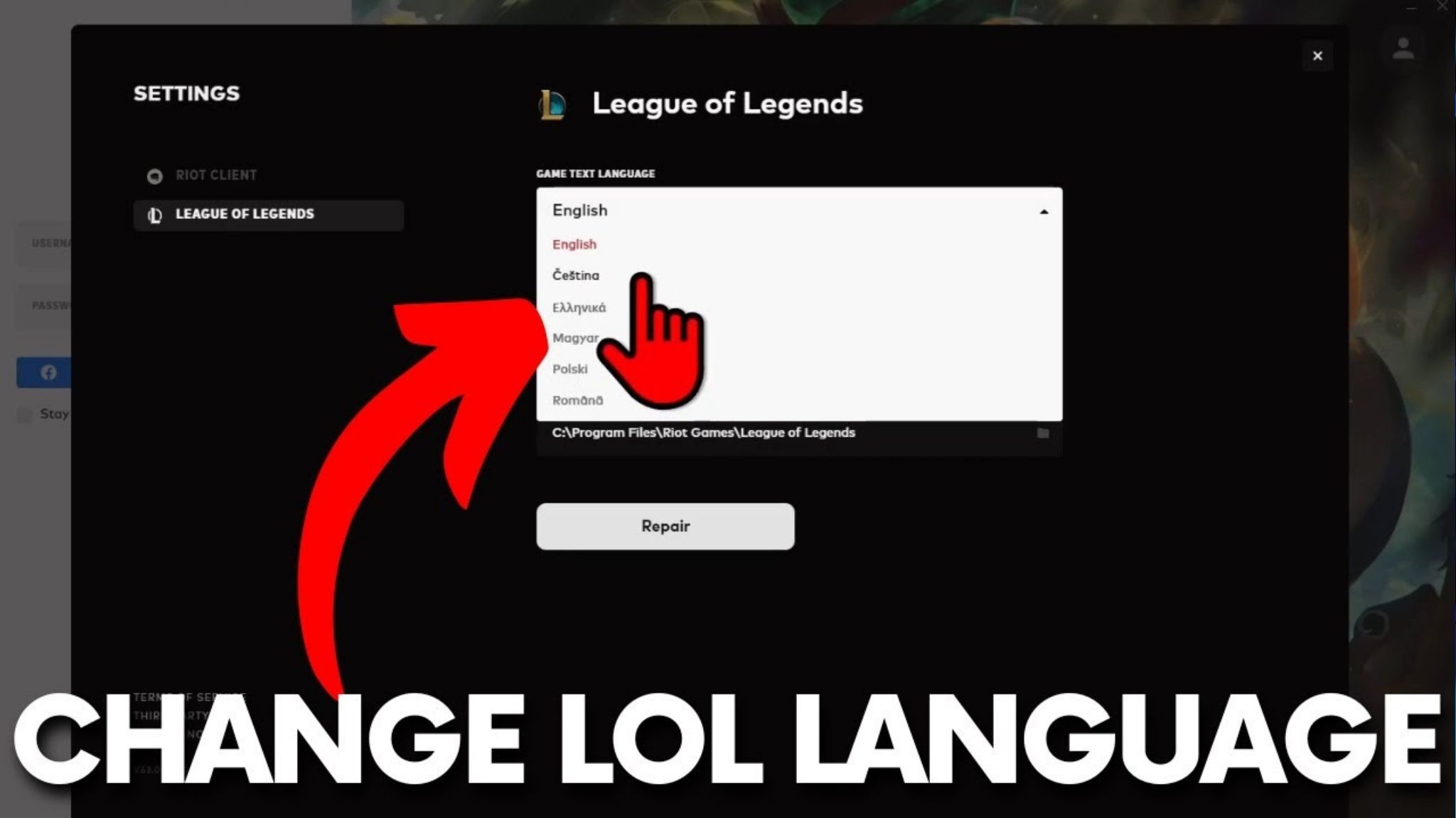
- Find the Game Text Language dropdown and choose your language.
- Let the client download the small update and restart.
A real-world limitation: the dropdown can be region-limited. If the language you want isn’t listed for your server, you’ll need the config or shortcut method below.
Force a Text Language With the Config File
If the dropdown doesn’t offer the language you want, you can force a locale by editing the config.
- Exit the Riot Client completely (also close it from the system tray if it’s still running).
- Go to your League install folder, commonly:
- C:\Riot Games\League of Legends
- Open the Config folder.
- Open LeagueClientSettings.yaml with Notepad (or any plain text editor).
- Find the locale line and replace the value with the locale you want (example: ja_JP).
- Save the file, then launch League.
Important: only change locale. Don’t touch region or other fields unless you enjoy troubleshooting re-downloads and weird launcher behavior.
How to Change In-Game Voice Language
 If your goal is champion voice lines and the announcer, the most reliable method on Windows is launching League with a locale flag.
Change Voice With a Desktop Shortcut on Windows
- Close Riot Client completely.
- Open your League folder (commonly C:\Riot Games\League of Legends).
- Find LeagueClient.exe.
- Right-click it and choose Create shortcut.
- Move that shortcut to your desktop.
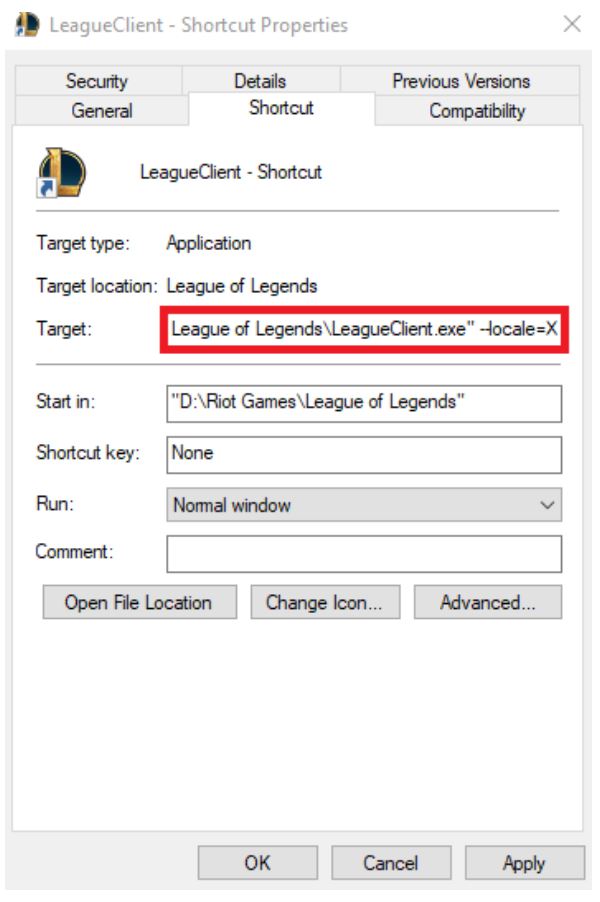
- Right-click the shortcut, open Properties.
- In Target, go to the very end, add a space, then add:
- –locale=ko_KR (example)
Launch League using that shortcut. If you keep launching from the Riot Client button or tray icon, your shortcut flag might not apply.
Common Locale Examples
Choose a language style format consistently throughout (XX_XX). Examples include:
- en_US (US English)
- en_GB (British English)
- ja_JP (Japanese)
- ko_KR (Korean)
- fr_FR (French)
- de_DE (German)
- es_ES (Spanish from Spain)
- es_MX (Latin American Spanish)
- pt_BR (Brazilian Portuguese)
- ru_RU (Russian)
- zh_CN (Simplified Chinese)
- zh_TW (Traditional Chinese)
In case you choose a language that’s not supported by your installation or location, the client may fallback or incompletely translate itself.
Make It Stick if It Resets After Patches
In case your language reverts every time after installing patches, check that you are running the game through the customized shortcut all the time and that the right language is set and actually supported.
Many gamers also use the method of making the shortcut read-only by right-clicking on the shortcut and going to Properties > General > Read-only.
How to Change the Riot Client Language
This setting affects the Riot Client itself (the launcher UI). It’s useful if you want the launcher menus and settings in your language, even if you keep in-game text/voice different.
- Open Riot Client while logged out.
- Click the profile icon.
- Go to Settings.
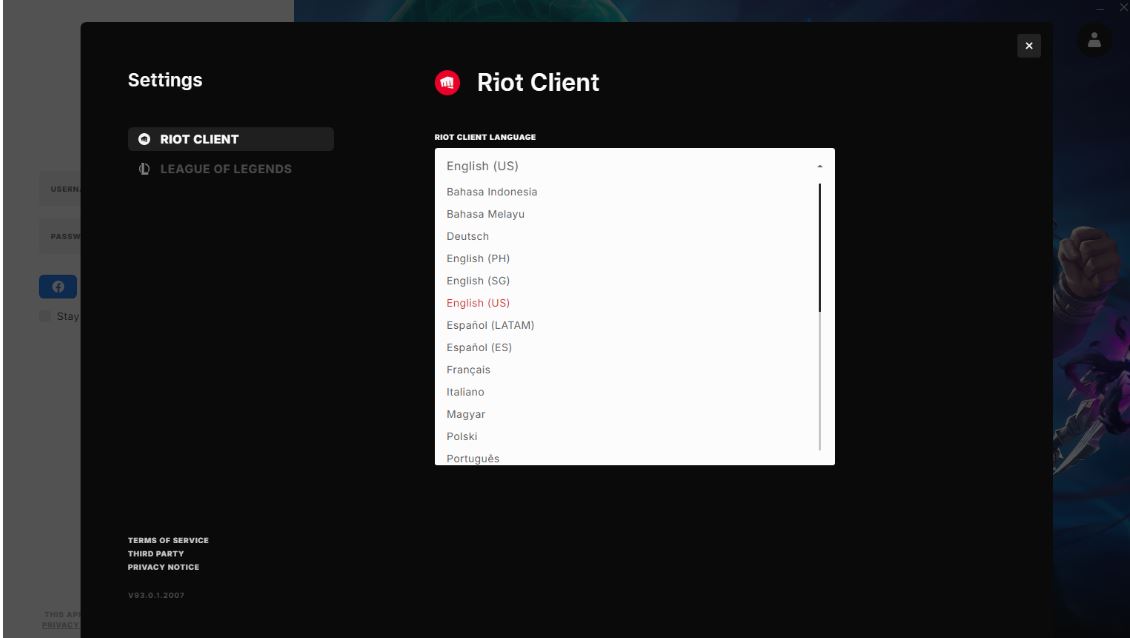
- Change Riot Client Language.
- Restart when prompted.
If you’re mixing settings (for example, English launcher but Korean VO), do it on purpose and keep notes. It’s easy to forget what you changed when you come back after a break.
How to Revert to Your Original Language
 If you switched to a language you can’t navigate, don’t panic. Reverting is usually faster than setting it up.
Fast Revert for Shortcut Users
- Right-click your League shortcut -> Properties
- Remove the –locale=XX_XX part from Target
- Apply -> OK, then relaunch
Fast Revert for Config File Users
- Go to C:\Riot Games\League of Legends\Config
- Delete LeagueClientSettings.yaml
- Start League again and it will regenerate with defaults for your region
If nothing seems to work, a Repair from the Riot Client can fix mismatched or missing language files without requiring a full reinstall.
Common Language Change Issues in LoL
Text Changed, but Voices Are Still English
You likely used the official Game Text Language dropdown. That’s normal. Use the shortcut locale flag method for VO.
The Language Option Is Missing or Limited in the Dropdown
That’s usually region behavior. If your server doesn’t offer the language in the list, force it via LeagueClientSettings.yaml or the shortcut method.
It Keeps Switching Back to English
Most of the time, you’re launching League the “normal” way instead of your custom shortcut. Always start from the shortcut that includes the locale flag.
If it still resets after patches, re-check the shortcut Target field. Updates sometimes rewrite paths or recreate shortcuts.
Client Crashes or Loads Half-Translated
It may occur due to the unavailability of locale packs for your system. To revert, simply delete LeagueClientSettings.yaml and use another locale identifier.
No Voices or Missing Announcer After Switching
It means that you lack an asset pack. Use the Riot Client Repair while your chosen locale is active and allow the installation process to download the files.